
Your new CUNY email account will receive email all in one inbox:
- Sent to your new:
- Firstname.Lastname##@stu-mail.(Your Campus Acronym).cuny.edu student email address(es) for your college(s)
- For SLU this will be Firstname.Lastname##@stu-mail.slu.cuny.edu
- Firstname.Lastname##@cuny.edu email address
- Firstname.Lastname##@login.cuny.edu email address
- Firstname.Lastname##@stu-mail.(Your Campus Acronym).cuny.edu student email address(es) for your college(s)
- Automatically forwarded to your new CUNY email account from your old, college-based email account
The following sections describe ways to help manage the multiple email addresses associated with your new CUNY email account.
Choosing your “Send From” Email Address
Before you send, forward, or reply to an email, click on the Send button (in Outlook on the web) or From button (in the desktop Outlook client) and choose the email address to send from.
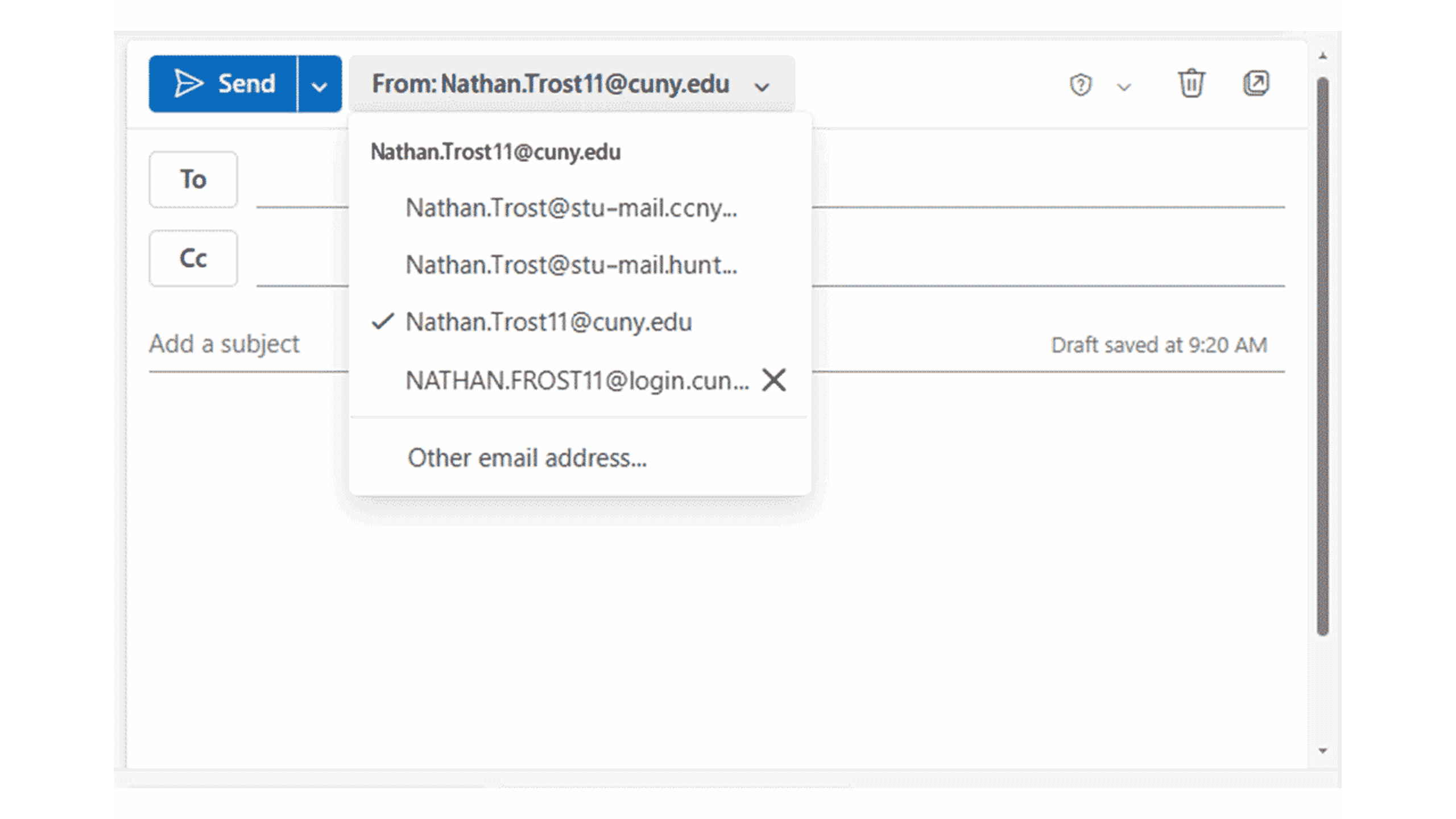 Changing your Default “Send From” Address in CUNYfirst
Your default send email address in the new CUNY email account will be your Preferred Email address from CUNYfirst. To change your default Send From email address, choose one of your other college or CUNY email addresses as your Preferred Email address in CUNYfirst.
Organizing your Mailbox
Microsoft provides suggestions on how you can use folders, rules, categories and Outlook features to help organize your mailbox. See the following on the Microsoft website to learn more:
- Organize your inbox for an overview on using sweep, rules, folders and categories to help you manage the email for multiple addresses in your CUNY account mailbox.
- Create a folder or subfolder in Outlook
- Manage email messages by using rules in Outlook for detailed instructions on setting up rules.
- Organize your inbox with Archive, Sweep, and other tools in Outlook on the web
- Use categories in Outlook
You may also want to set up a matching folder structure in your OneDrive to make it easier to associate file attachments, both uploads and downloads, with specific email addresses.